
Map
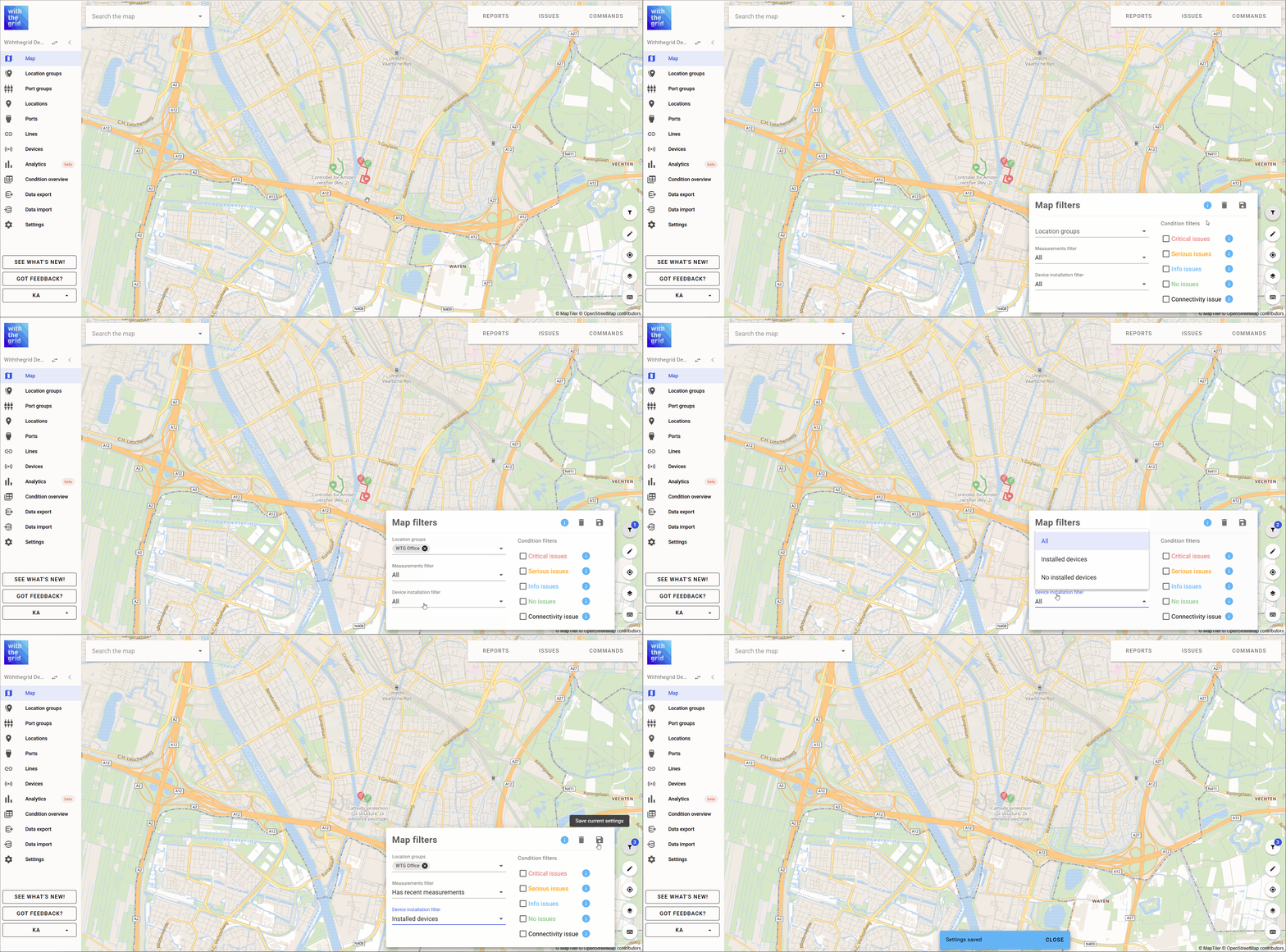
The default view in the platform is the map view. It gives an immediate overview of the assets and their status (green, orange or red). From this overview you can click on a location, see the overview of reports comings in, the list of issues or schedule a command. If you want to go back to this view you can always click on the map icon in the left hand sidebar.
Default map view
The map view is composed of multiple areas accessible to the user including the “search the map” bar, where users can search available locations. Additional areas on the map view are
Map settings
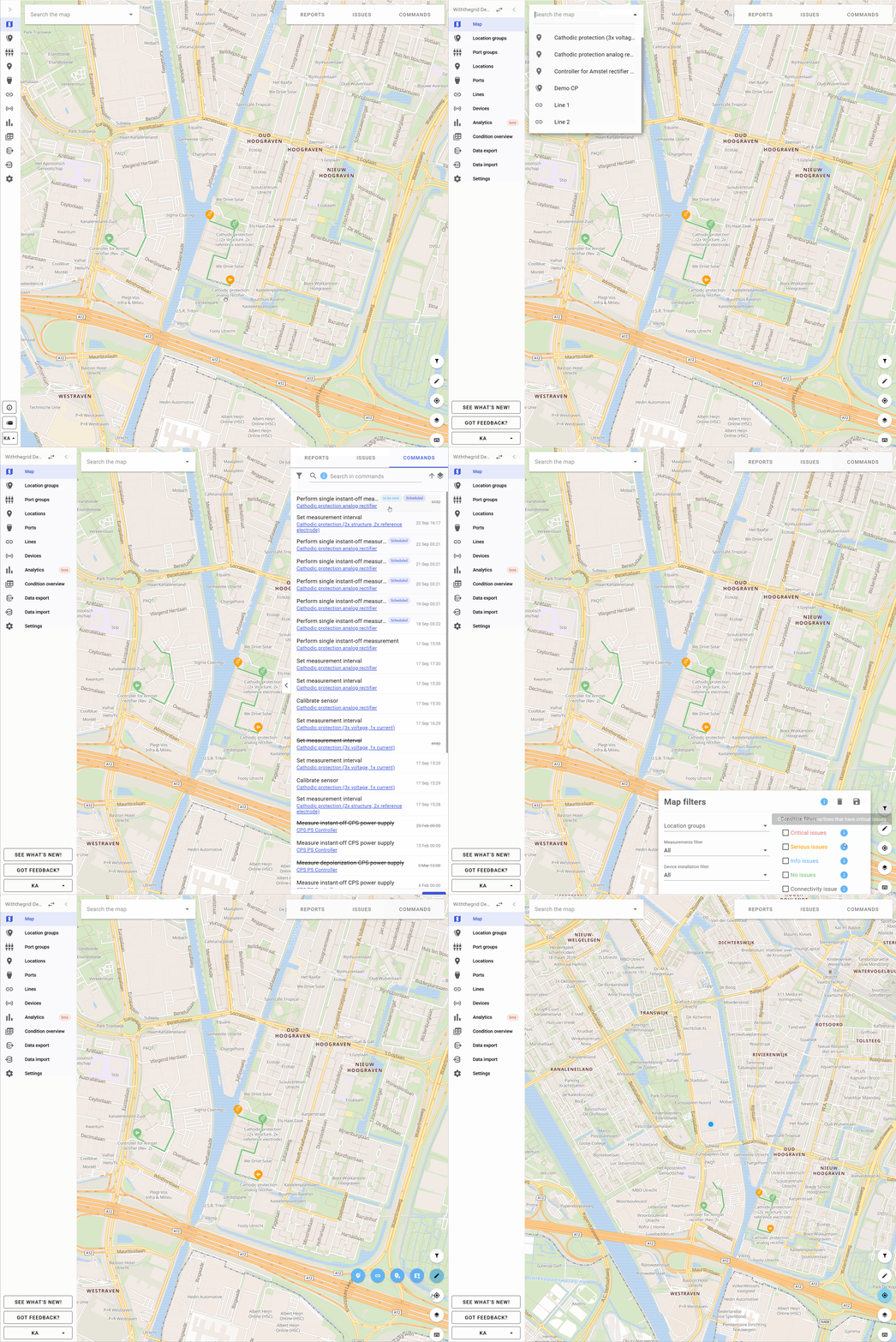
In the map settings, it is possible to change how location icons will be displayed. You can choose if location icons will be displayed as dots at low zoom levels.
Map layers
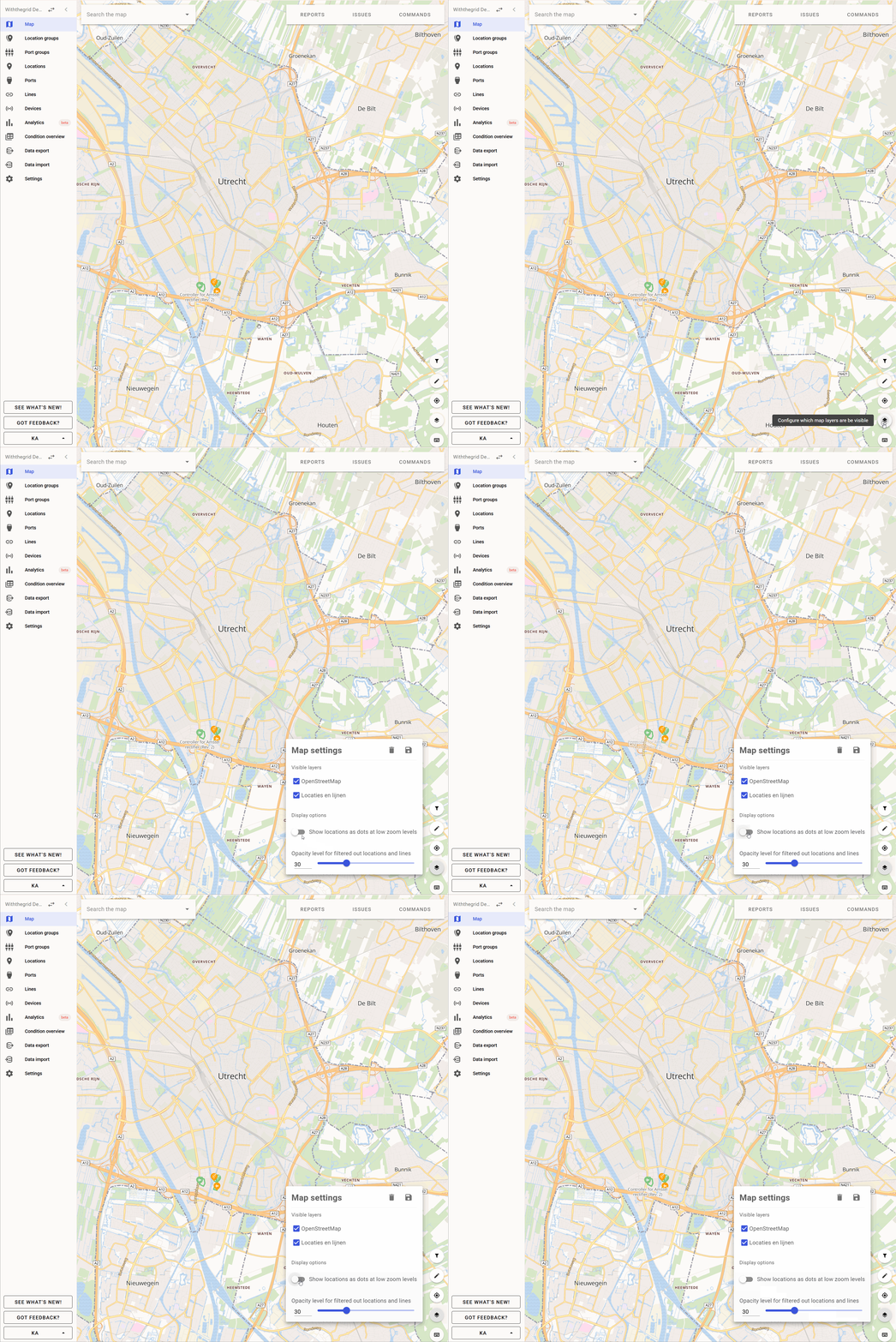
It is possible to add additional map layers to the asset environment. By having multiple map layers locations can be added to a specific map layer which can be viewed separately.
Custom external map layers

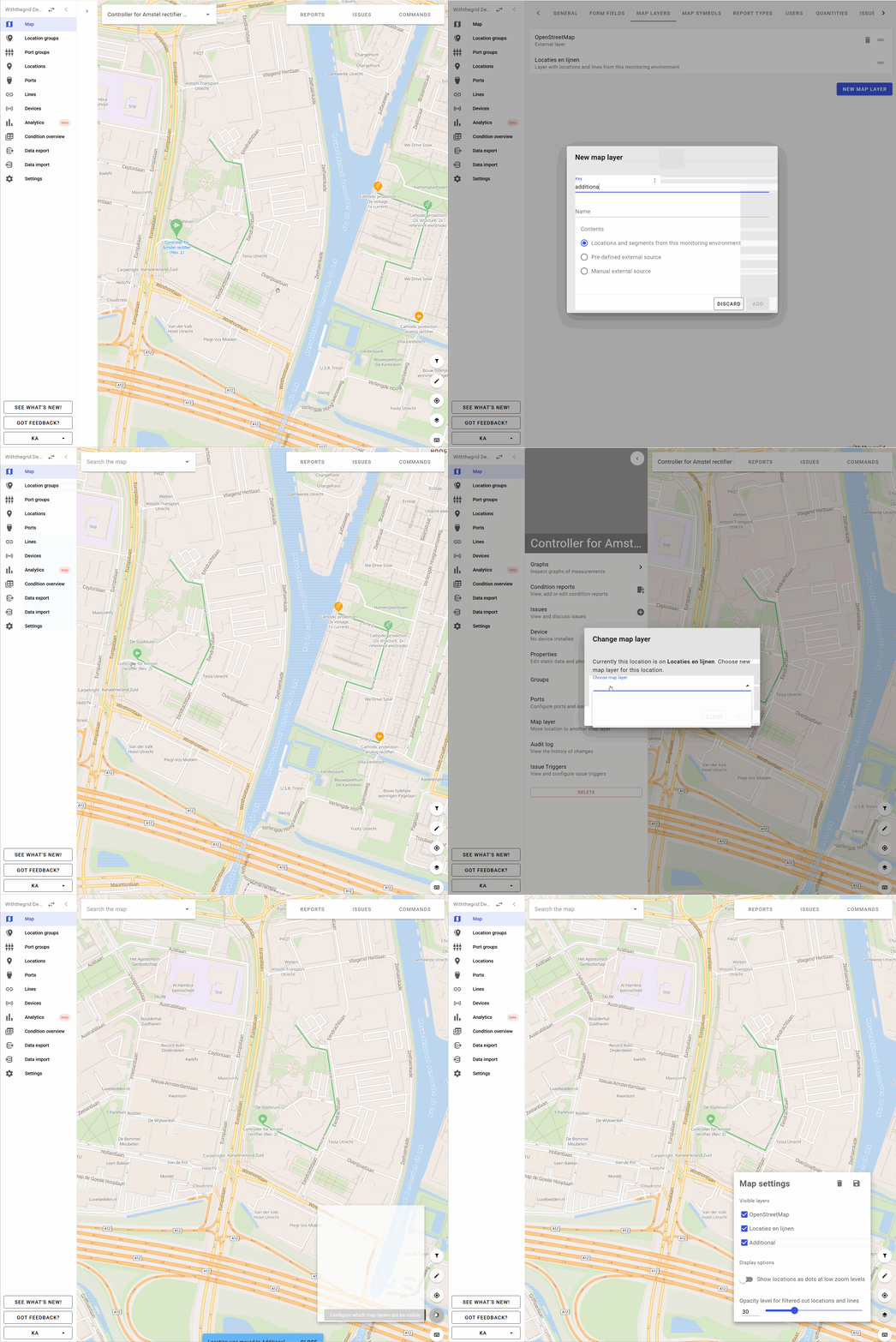
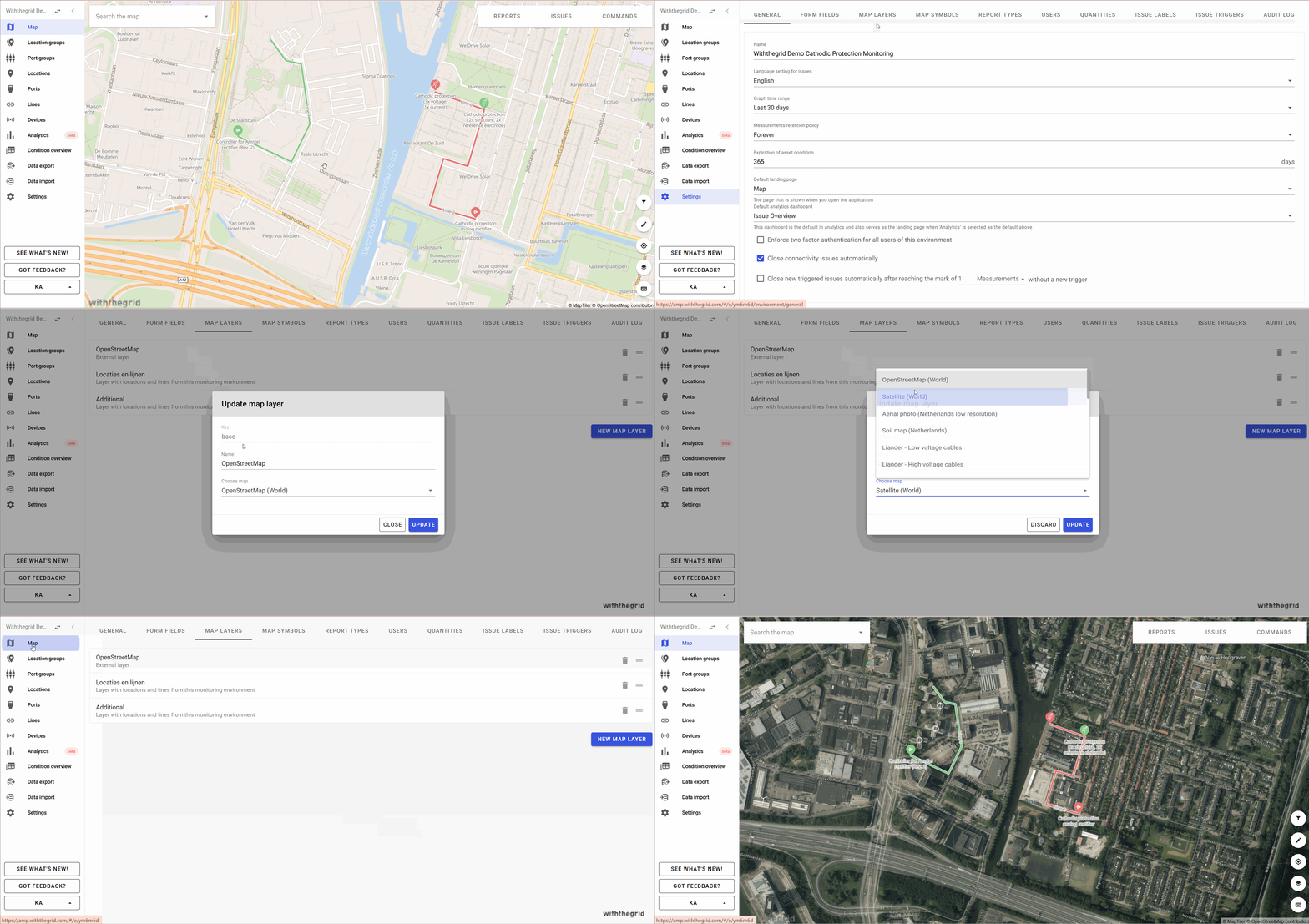
Users are empowered to use satellite view and pre-configured map layers. The satellite view (as shown above) allows for a more detailed insight in the asset’ environment. This functionality could for instance improve the process of rightfully appointing exact locations. Currently there is a dropdown of multiple predefined map layers but more will be added in the future.
You are able to configure manual external map sources yourself. We use the Mapbox style annotation, so please check the Mapbox specifications.

Currently, a number of external map layers are available.
Synchronization with GIS
It is possible to link the Withthegrid map with your GIS system. This enables you to always have one single source of truth of static asset data. Please contact us.
Map filters
Map filters allow you to filter your assets based on different criteria; location groups, measurements, installed devices and issues. If you are unsure what the filters are currently doing, hover on the tooltip in the top right corner and it will give you a human readable sentence explaining it all. These filters are also persistent across screens in the application so that you don’t lose your filtering strategy if you navigate to see something else, for example the graphs of a location. On top of that, they are persistent across sessions so that you keep them if you refresh the application.